php-mysqlnd も一緒にインストールしています。
~]# dnf -y install mariadb-server php-mysqlnd
MariaDB 設定ファイル編集。
追加。
~]# vi /etc/my.cnf.d/mariadb-server.cnf
# This group is only read by MariaDB-10.11 servers.
# If you use the same .cnf file for MariaDB of different versions,
# use this group for options that older servers don't understand
[mariadb-10.11]
character-set-server = utf8mb4
~]# vi /etc/my.cnf.d/client.cnf
# This group is not read by mysql client library,
# If you use the same .cnf file for MySQL and MariaDB,
# use it for MariaDB-only client options
[client-mariadb]
default-character-set = utf8mb4
自動起動有効+起動。
~]# systemctl enable --now mariadb
MariaDB 初期設定。
~]# mysql_secure_installation
入力。
NOTE: RUNNING ALL PARTS OF THIS SCRIPT IS RECOMMENDED FOR ALL MariaDB
SERVERS IN PRODUCTION USE! PLEASE READ EACH STEP CAREFULLY!
In order to log into MariaDB to secure it, we'll need the current
password for the root user. If you've just installed MariaDB, and
haven't set the root password yet, you should just press enter here.
Enter current password for root (enter for none): ⏎
OK, successfully used password, moving on...
Setting the root password or using the unix_socket ensures that nobody
can log into the MariaDB root user without the proper authorisation.
You already have your root account protected, so you can safely answer 'n'.
Switch to unix_socket authentication [Y/n] n
... skipping.
You already have your root account protected, so you can safely answer 'n'.
Change the root password? [Y/n] n
... skipping.
By default, a MariaDB installation has an anonymous user, allowing anyone
to log into MariaDB without having to have a user account created for
them. This is intended only for testing, and to make the installation
go a bit smoother. You should remove them before moving into a
production environment.
Remove anonymous users? [Y/n] ⏎
... Success!
Normally, root should only be allowed to connect from 'localhost'. This
ensures that someone cannot guess at the root password from the network.
Disallow root login remotely? [Y/n] ⏎
... Success!
By default, MariaDB comes with a database named 'test' that anyone can
access. This is also intended only for testing, and should be removed
before moving into a production environment.
Remove test database and access to it? [Y/n] ⏎
- Dropping test database...
... Success!
- Removing privileges on test database...
... Success!
Reloading the privilege tables will ensure that all changes made so far
will take effect immediately.
Reload privilege tables now? [Y/n] ⏎
... Success!
Cleaning up...
All done! If you've completed all of the above steps, your MariaDB
installation should now be secure.
Thanks for using MariaDB!
MariaDB へ root でログイン。(パスワード不要)
~]# mysql
【以降の作業について。】
① root で DB を作る(管理者作業)
MariaDB [(none)]> CREATE DATABASE app_db;
② root でユーザーを作る(管理者作業)
MariaDB [(none)]> CREATE USER 'app_user'@'localhost' IDENTIFIED BY 'password';
③ 必要最小限の権限だけ与える
MariaDB [(none)]> GRANT SELECT, UPDATE, DELETE ON app_db.* TO 'app_user'@'localhost';
④ アプリはそのユーザーで DB に接続する
下記は root だけがやればよい。
DB 作成
テーブル作成
ユーザー作成
権限管理
バックアップ
リストア
データのバックアップ及びリストア
~]# mysqldump auth_db > auth_db.sql
~]# mysql auth_db < auth_db.sql
データベース一覧を表示する
MariaDB [(none)]> SHOW DATABASES;
ユーザー一覧を表示する
MariaDB [(none)]> SELECT User, Host FROM mysql.user;
全ユーザーの権限をまとめて標準出力
~]# mysql -N -e "SELECT CONCAT('SHOW GRANTS FOR ''',User,'''@''',Host,''';') FROM mysql.user" \
| mysql
rclone インストール。
~]# curl https://rclone.org/install.sh | bash
・・・
・・・
rclone v1.74.3 has successfully installed.
Now run "rclone config" for setup. Check https://rclone.org/docs/ for more details.
ローカルの PC で rclone コマンドを使用するため、ローカルの PC にも rclone のインストールが必要。
local:~$ sudo -v ; curl https://rclone.org/install.sh | sudo bash
リモート設定を登録。入力,コメント。
client_id,client_secret は、作成せずに空エンターでも可ですが、パフォーマンスが落ちるとのこと。
作成するのであれば、ご参考まで。→ rclone 用に独自の Google Drive クライアント ID を作成する。
~]# rclone config
2026/06/06 12:05:13 NOTICE: Config file "/root/.config/rclone/rclone.conf" not found - using defaults
No remotes found, make a new one?
n) New remote
s) Set configuration password
q) Quit config
n/s/q> n
Enter name for new remote.
name> google-backup ← 任意のリモート設定名
Option Storage.
Type of storage to configure.
Choose a number from below, or type in your own value.
1 / 1Fichier
\ (fichier)
2 / Akamai NetStorage
\ (netstorage)
3 / Alias for an existing remote
\ (alias)
・・・
・・・
23 / Google Cloud Storage (this is not Google Drive)
\ (google cloud storage)
24 / Google Drive
\ (drive)
25 / Google Photos
\ (google photos)
・・・
・・・
66 / iCloud Drive and Photos
\ (iclouddrive)
67 / premiumize.me
\ (premiumizeme)
68 / seafile
\ (seafile)
Storage> drive
Option client_id.
Google Application Client Id
Setting your own is recommended.
See https://rclone.org/drive/#making-your-own-client-id for how to create your own.
If you leave this blank, it will use an internal key which is low performance.
Enter a value. Press Enter to leave empty.
client_id> ⏎ ← 作成していればクライアント ID を入力
Option client_secret.
OAuth Client Secret.
Leave blank normally.
Enter a value. Press Enter to leave empty.
client_secret> ⏎ ← 作成していればクライアント シークレットを入力
Option scope.
Comma separated list of scopes that rclone should use when requesting access from drive.
Choose a number from below, or type in your own value.
Press Enter to leave empty.
1 / Full access all files, excluding Application Data Folder.
\ (drive)
2 / Read-only access to file metadata and file contents.
\ (drive.readonly)
/ Access to files created by rclone only.
3 | These are visible in the drive website.
| File authorization is revoked when the user deauthorizes the app.
\ (drive.file)
/ Allows read and write access to the Application Data folder.
4 | This is not visible in the drive website.
\ (drive.appfolder)
/ Allows read-only access to file metadata but
5 | does not allow any access to read or download file content.
\ (drive.metadata.readonly)
scope> 1
Option service_account_file.
Service Account Credentials JSON file path.
Leave blank normally.
Needed only if you want use SA instead of interactive login.
Leading `~` will be expanded in the file name as will environment variables such as `${RCLONE_CONFIG_DIR}`.
Enter a value. Press Enter to leave empty.
service_account_file> ⏎
Edit advanced config?
y) Yes
n) No (default)
y/n> n
Use web browser to automatically authenticate rclone with remote?
* Say Y if the machine running rclone has a web browser you can use
* Say N if running rclone on a (remote) machine without web browser access
If not sure try Y. If Y failed, try N.
y) Yes (default)
n) No
y/n> n
Option config_token.
For this to work, you will need rclone available on a machine that has
a web browser available.
For more help and alternate methods see: https://rclone.org/remote_setup/
Execute the following on the machine with the web browser (same rclone
version recommended):
rclone authorize "drive" "eyJjbxxxxx" ← ※1
Then paste the result.
Enter a value.
config_token> ← ※2
Configure this as a Shared Drive (Team Drive)?
y) Yes
n) No (default)
y/n> n
Configuration complete.
Options:
- type: drive
- scope: drive
- token: {"access_token":"ya29.xxxxx","expiry":"2026-06-06T13:16:10.992982584+09:00","expires_in":3599}
- team_drive:
Keep this "google-backup" remote?
y) Yes this is OK (default)
e) Edit this remote
d) Delete this remote
y/e/d> y
Current remotes:
Name Type
==== ====
google-backup drive
e) Edit existing remote
n) New remote
d) Delete remote
r) Rename remote
c) Copy remote
s) Set configuration password
q) Quit config
e/n/d/r/c/s/q> q
※1 ローカルの PC でココのコマンドを実行する。
local:~$ rclone authorize "drive" "eyJjbxxxxx"
・・・
・・・
ブラウザが立ち上がり Google のログイン画面となるので、ログイン。続行。
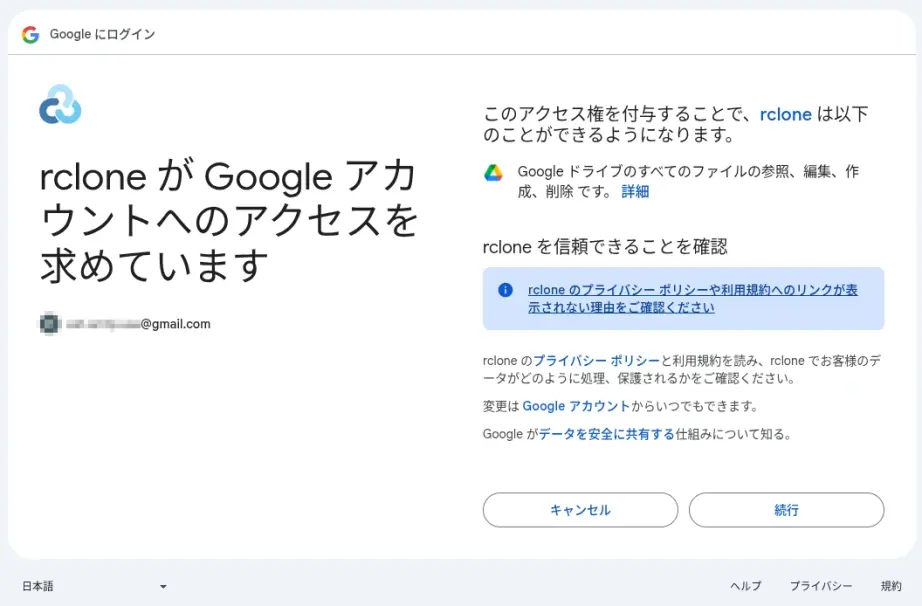
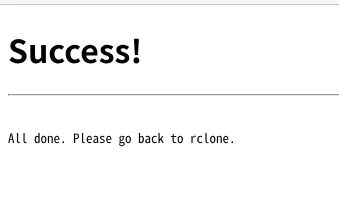
最終的には「Success!」と表示されて、端末上には以下のようにトークンが表示されているので、それを※2にコピペ。
・・・
・・・
Paste the following into your remote machine --->
eyJ0bxxxxx
<---End paste
【Rclone 基本操作】
BACKUP ディレクトリを作成。
~]# rclone mkdir google-backup:/BACKUP
確認。
~]# rclone lsd google-backup:
-1 2020-11-28 12:55:06 -1 BACKUP
コピーしてバックアップをとる。
(-P/--progress:リアルタイムの転送統計を表示する)
~]# rclone copy /path/to/dir/website.tar google-backup:/BACKUP/ -P
Transferred: 2.407M / 2.407 MBytes, 100%, 264.357 kBytes/s, ETA 0s
Transferred: 1 / 1, 100%
Elapsed time: 9.9s
確認。
~]# rclone ls google-backup:/BACKUP/
2524097 website.tar
新サーバーの DNS へ切り替えたのち、hook 付き certbot を実行して、renewal 設定を作成する。
1. TSIG 鍵の作成。
~]# tsig-keygen -a hmac-sha256 certbot-key > /var/named/certbot.key
~]# chown root:named /var/named/certbot.key
~]# chmod 640 /var/named/certbot.key
2. named.conf に TSIG 鍵を登録。
~]# vi /etc/named.conf
追記。
include "/var/named/certbot.key";
zone "wave440.com" {
type master;
file "wave440.com.db.wan";
update-policy {
grant certbot-key name _acme-challenge.wave440.com. txt;
};
allow-query { any; };
allow-transfer {
216.218.133.2;
2001:470:600::2;
};
notify yes;
};
設定反映。
~]# rndc reconfig
3. Certbot hook スクリプトを作成。
manual-auth-hook(TXT 追加)
~]# vi /usr/local/bin/certbot-auth.sh
#!/bin/bash
nsupdate -k /var/named/certbot.key << EOF
server 127.0.0.1
zone wave440.com.
update add _acme-challenge.wave440.com. 60 IN TXT "$CERTBOT_VALIDATION"
send
EOF
manual-cleanup-hook(TXT 削除)
~]# vi /usr/local/bin/certbot-cleanup.sh
#!/bin/bash
nsupdate -k /var/named/certbot.key << EOF
server 127.0.0.1
zone wave440.com.
update delete _acme-challenge.wave440.com. TXT
send
EOF
deploy-hook(更新後に httpd / Postfix / Dovecot を reload)
~]# vi /usr/local/bin/certbot-deploy.sh
#!/bin/bash
systemctl reload httpd
systemctl reload postfix
systemctl reload dovecot
権限。
chmod 700 /usr/local/bin/certbot-*.sh
4. 新サーバーの DNS で取得(DNS‑01 manual)
入力
~]# certbot certonly \
--manual \
--preferred-challenges dns \
--manual-auth-hook /usr/local/bin/certbot-auth.sh \
--manual-cleanup-hook /usr/local/bin/certbot-cleanup.sh \
--deploy-hook /usr/local/bin/certbot-deploy.sh \
-d '*.wave440.com' -d wave440.com \
--agree-tos \
--email xxxxx@wave440.com
・・・
・・・
What would you like to do?
- - - - - - - - - - - - - - - - - - - - - - - - - - - - - - - - - - - - - - - -
1: Keep the existing certificate for now
2: Renew & replace the certificate (may be subject to CA rate limits)
- - - - - - - - - - - - - - - - - - - - - - - - - - - - - - - - - - - - - - - -
Select the appropriate number [1-2] then [enter] (press 'c' to cancel): 2
Renewing an existing certificate for *.wave440.com and wave440.com
Successfully received certificate.
Certificate is saved at: /etc/letsencrypt/live/wave440.com/fullchain.pem
Key is saved at: /etc/letsencrypt/live/wave440.com/privkey.pem
・・・
・・・
systemd タイマー確認。
~]# systemctl list-timers
renewal 設定確認。
~]# cat /etc/letsencrypt/renewal/wave440.com.conf
deploy-hook 付きで実行しても、renewal 設定には renew_hook として保存されるようです。
renew_hook は古い互換用らしいので、手動で deploy_hook に変更編集しました。
rndc reload example.com
rndc: 'reload' failed: dynamic zone
このエラーは、ゾーンが allow-update または update-policy により動的更新(nsupdate)を許可しているため、手動編集 + reload が禁止されるという意味です。
動的ゾーンを一時的にフリーズ して編集 → thaw
rndc freeze example.com
vi /var/named/example.com.zone
rndc thaw example.com
--enablerepo を付けてインストールしたパッケージは、自動更新の dnf update では update されないので、--enablerepo を付けて更新するスクリプトを作成して、/etc/cron.weekly/ に置いています。
#!/bin/bash
dnf -y update --enablerepo=epel nkf ImageMagick ImageMagick-devel ffmpeg ffmpeg-devel snapd opendkim opendkim-tools vnstat
dnf -y update --enablerepo=crb libwebp-tools
/var/named/ 内に tmp-xxxxx という消えるべき一時ファイルが大量に蓄積されていくので、下記スクリプトを作成して、/etc/cron.daily/ に置いています。
1日前(24時間以上前)に作成・更新された tmp-* ファイルを削除します。
時間を指定しているのは、BIND がまさに今使っているかもしれないものを除外するためです。
#!/bin/bash
find /var/named/ -maxdepth 1 -name "tmp-*" -mtime +0 -type f -delete